

Your mother has called you for the third time this week because her iPad “went dark again.” Your father is still texting in all-caps, and has even video-called you at 6 a.m. You feel a mix of emotions you were not prepared for: love, frustration, guilt.
Providing technology support to aging parents is probably the most common, and the most emotionally draining, challenge that adult children are dealing with today. In fact, the Pew Research Center reports that 76% of Americans aged 65 and older now own a smartphone, up from just 18% in 2013. The devices are there, but the confidence often isn’t.
This guide walks you through how to set up technology that actually works for your elderly parents, how to teach them without losing your patience (or theirs), and what to do when screens just aren’t the right answer.

Start with Why, Not How
Before buying a new device or downloading a dozen apps on their phone, ask one question: what does my parent actually want to do with it?
Most elderly people don’t care about technology for its own sake. They want to see photos of the grandkids. They want to FaceTime their daughter who lives three states away. They want to refill a prescription without driving to the pharmacy.
When you anchor everything to their motivation, learning stops feeling like homework and starts feeling like a bridge to the people they love. If you’re not sure what matters most to them right now, our guide on what to talk about with aging parents can help you start the conversation. Write down their top three goals and build your entire setup around those.
Choose the Right Device for Your Parent
Not every elderly parent needs a smartphone. Pushing the wrong device is one of the fastest ways to kill their confidence.
Tablets are often the best starting point. The larger screen means bigger text, easier tap targets, and less squinting. An iPad or Samsung Galaxy Tab with a protective case works well for video calls, photo viewing, and simple games.
Smartphones make sense if your parent is already comfortable with a basic cell phone and wants to text or take photos on the go. iPhones tend to have a more consistent interface and better accessibility features out of the box. Android phones offer more customization but can overwhelm a new user.
Simplified phones like the Jitterbug (by Lively) or GrandPad are purpose-built for seniors who want calling, texting, and photos without the complexity. They sacrifice flexibility for ease.
The best device is the one your parent will actually pick up. Start with one device, not two. Master it before adding anything else.
Set Up Their Device Before You Hand It Over
This is where most families get it wrong — they gift a device and expect their parent to figure out the setup on their own. Do the heavy lifting yourself.
Display settings to adjust first:
- Increase text size to the largest comfortable setting
- Turn on bold text
- Raise screen brightness and enable auto-brightness
- Turn off auto-lock or set it to 5+ minutes so the screen doesn’t go dark mid-task
Simplify the home screen:
- Remove every pre-installed app they won’t use
- Keep only 6–8 apps on the main screen: Phone, Messages, Photos, Camera, FaceTime or Zoom, and one or two others tied to their goals
- Use large, labeled folders if needed — “Family,” “Health,” “Entertainment”
Set up key contacts:
- Add favorites so calling you is one tap, not twelve
- Add a photo to each contact so they can recognize who’s who
- Pre-save important numbers: their doctor, pharmacy, a helpful neighbor
Security basics:
- Set up Face ID or a simple numeric passcode (skip complex passwords)
- Enable Find My iPhone/Device in case they lose it
- Install a password manager or write passwords on a physical card kept in a safe place
Teach One Skill at a Time
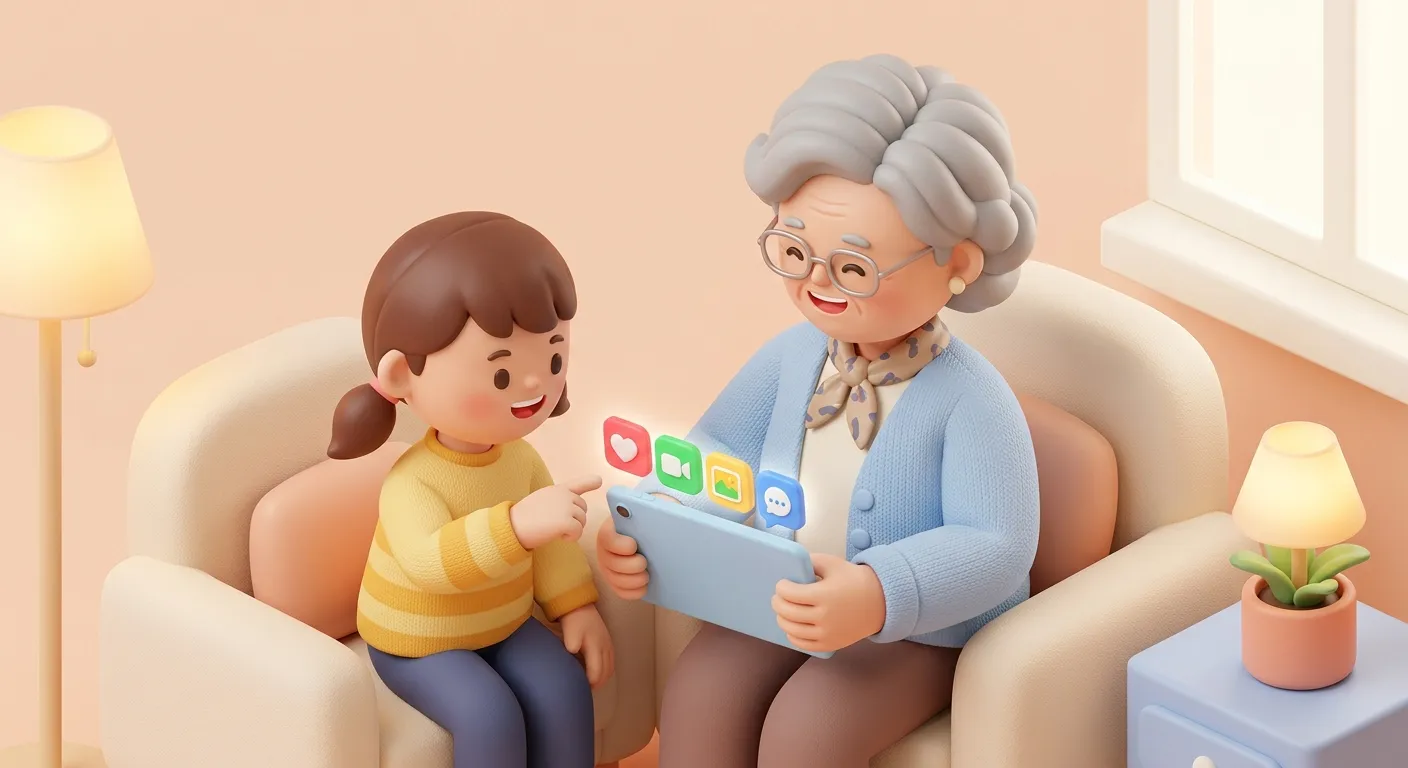
You learned to use a smartphone over years of daily practice. Your parent is starting from scratch in an afternoon. That gap matters more than you think.
Pick one skill per session. If today’s lesson is “how to make a video call,” that’s all you cover. Don’t detour into texting, the app store, or anything else — even if it seems simple to you.
Teaching tips that actually work:
- Sit beside them, not across from them, so the screen isn’t upside down from their perspective
- Let them hold the device and tap the buttons themselves — don’t take the phone and do it for them
- Write step-by-step instructions on paper with numbered steps and screenshots if possible
- Use their language, not tech jargon — say “the green phone button” instead of “tap the call icon”
- Repeat the same lesson next visit without making them feel bad about forgetting
A printed cheat sheet taped to the fridge is worth more than any app tutorial. Make one for each skill they learn: “How to Video Call [Your Name],” “How to Look at Photos,” “How to Send a Text.”
Navigate the Emotional Side of Teaching Elderly Parents Technology
Here’s the part no tech guide talks about: teaching your parent technology is a role reversal, and it can feel uncomfortable for both of you.
Your parent spent decades being the one who knew things. They taught you to tie your shoes, balance a checkbook, drive a car. Now you’re teaching them to tap a screen. For many seniors, needing help with something “everyone else” seems to understand feels humbling — even shameful.
Watch for signs of frustration or withdrawal. If your parent says “I’m just too old for this,” they’re usually not stating a fact — they’re expressing a fear of looking foolish.
What helps:
- Normalize the difficulty: “These devices change all the time. Even I have to look things up.”
- Celebrate small wins genuinely — the first selfie, the first text sent on their own
- Never sigh, grab the phone away, or say “I already showed you this”
- If tensions rise, stop. Try again another day. The relationship matters more than the lesson.
Protect Your Parent from Scams and Security Threats
Older adults lost over $3.4 billion to fraud in 2023, according to the Federal Trade Commission. Teaching your parent technology without teaching them digital safety is like handing someone car keys without mentioning stop signs.
Cover these basics early:
- Never share passwords, Social Security numbers, or bank details over text, email, or phone
- If a message says “urgent” or “act now,” it’s almost certainly a scam
- Banks and the IRS will never ask for information via text or email
- When in doubt, hang up and call the company directly using the number on their website or card
Set up their email to filter spam aggressively. Turn on two-factor authentication for important accounts. And tell them it’s always okay to call you before clicking anything that feels off.

Help from a Distance: Remote Tech Support for Aging Parents
If you don’t live nearby, troubleshooting your parent’s tech problems over the phone can feel impossible. “What do you see on the screen?” is a question that has tested many a parent-child relationship.
Tools that make remote help easier:
- Screen sharing: Apple’s SharePlay, Google Meet screen sharing, or TeamViewer QuickSupport let you see exactly what’s on their screen
- Remote access: Chrome Remote Desktop allows you to control their computer from yours (requires one-time setup while you’re together)
- Scheduled check-ins: Set a weekly 15-minute “tech time” call where you walk through any issues — this prevents problems from piling up
If remote troubleshooting isn’t cutting it, consider hiring a local tech coach. Many libraries, senior centers, and organizations like OATS (Older Adults Technology Services) offer free or low-cost tech classes for seniors. Best Buy’s Geek Squad also offers in-home setup services.
For more strategies on staying connected when you’re far away, check out our guide to long-distance grandparenting.
Set Up Video Calls That Actually Happen
Video calling is probably the single most valuable tech skill for elderly parents. Seeing a grandchild’s face changes everything. But if the setup is clunky, those calls won’t happen.
Make video calling foolproof:
- Pick one platform and stick with it. FaceTime for Apple-to-Apple families, WhatsApp Video or Zoom for mixed devices.
- Add a home screen shortcut that opens the app and starts a call with one tap
- Schedule a recurring call — same day, same time — so it becomes routine rather than a technology event
- Test the setup with a practice call before the “real” one with grandkids
If your parent enjoys video calling, we’ve put together 20 activity ideas to make those calls more engaging for every age group.
When Technology Isn’t the Answer
Sometimes, despite your best efforts, technology simply doesn’t click. Maybe your parent has tremors that make touchscreens difficult. Maybe early cognitive changes make remembering steps impossible. Maybe they just don’t want to stare at a screen — and that’s a valid choice. (If you’re noticing these kinds of changes, you may want to review the signs your aging parent needs help at home.)
The goal was never to make your parent tech-savvy. The goal was connection. And connection doesn’t require Wi-Fi.
Printed photos still bring joy. Handwritten letters still brighten someone’s day. A monthly family newspaper that arrives in the mailbox — like Hug Letters — gives your parent something to hold, read, and share with friends at the dining hall, no login required.
If your efforts with technology are creating more stress than closeness, it’s okay to change course. We wrote a whole guide on sharing family photos with grandparents who don’t use technology — because sometimes the most loving solution is the simplest one.

FAQ
What is the best phone for an elderly parent?
For most elderly parents, an iPhone SE or a basic iPad offers the best balance of simplicity and capability. The consistent interface, strong accessibility features, and easy FaceTime access make Apple devices a solid default. If budget is a concern, a Samsung Galaxy A-series phone with Easy Mode enabled is a reliable Android option. For parents who only need calls and texts, a Jitterbug phone by Lively strips away complexity entirely.
How do I teach my parent technology without getting frustrated?
Limit each session to one skill, sit beside them so you share the same screen perspective, and let them do the tapping. Write instructions on paper with numbered steps. Expect to repeat the same lesson multiple times — and reframe repetition as practice, not failure. If you feel frustration rising, stop and come back later. The relationship is more important than any app.
How can I help my elderly parent with tech problems from far away?
Use screen-sharing tools like Apple SharePlay, Google Meet, or TeamViewer to see their screen remotely. Set up a weekly 15-minute “tech check-in” call to address small issues before they snowball. For hands-on help, look into local resources like library tech classes, OATS programs, or Best Buy Geek Squad in-home services.
Should I get my elderly parent a smartphone or a tablet?
If your parent mainly wants to video call, view photos, and browse, start with a tablet — the larger screen is significantly easier to use. If they need a portable device for calls, texts, and photos on the go, a smartphone makes more sense. Avoid giving them both at once. Get them comfortable with one device first, then consider adding another.

About Martin Gouy
Martin is the founder of Hug Letters. Hug Letters is a family newsletter for grandparents. Every month, grandparents receive a heartwarming newspaper with photos and stories from the whole family.